Sometimes you have a requirement to access information from an external source and store or display in Salesforce. One way of doing this is by making a REST API call from Salesforce to an external endpoint. In this example, we show step by step how a call using the REST API can be made to an external site to retrieve weather information related to an Account. We will be using http://openweathermap.org to get the weather and temperature of our Accounts Shipping City.
Summary:
- Ensure you have “API Enabled” permission.
- Register the site in the Remote Site Settings
- Get an API key
- Create the controller that will call the API
- Check that the HTTP request response code is 200 (OK)
- Deserialize JSON response code into a Map of String to Object
- Get values you need by accessing the relevant key
- Display using a button or an embedded VisualForce page
Step 1:
Ensure you have “API Enabled” permission. This is the setting that allows you to make API calls. This must be enabled to call any external service.
- Navigate to Setup > Manage Users > Profiles
- Select the profile of the person who will be the running user.
- Ensure “API Enabled” is selected

Step 2:
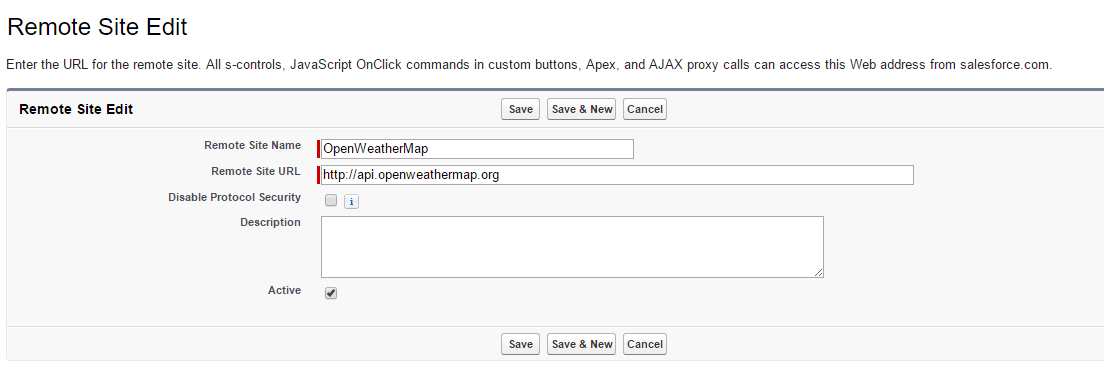
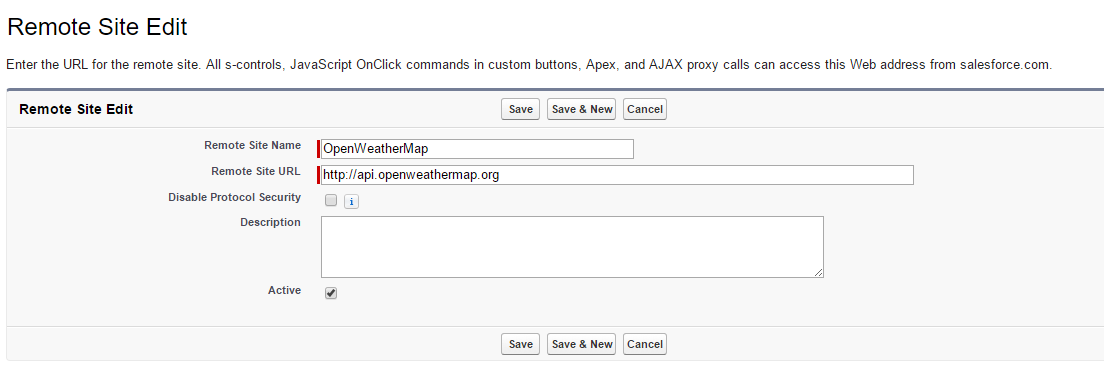
You must register the site we are calling in the Remote Site Settings, otherwise our call will fail.
- Navigate to Setup > Security Controls > Remote Site Settings
- Select “New Remote Site”
- Fill in the name field. This can be anything you choose to identify it for yourself.
- In the Remote Site URL field add the address of the the site you want to call. In our case it will be “http://api.openweathermap.org”
- Ensure active is selected
- Click save
Step 3:
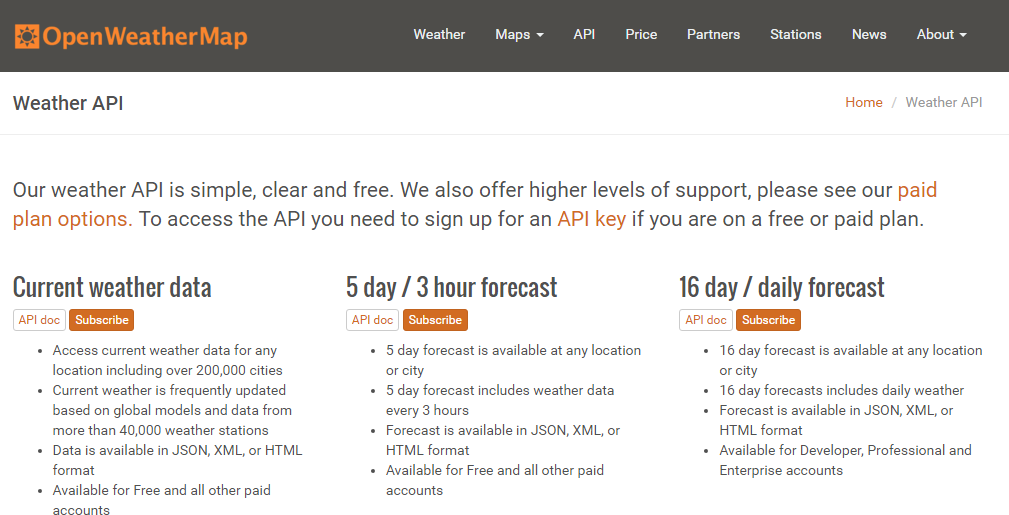
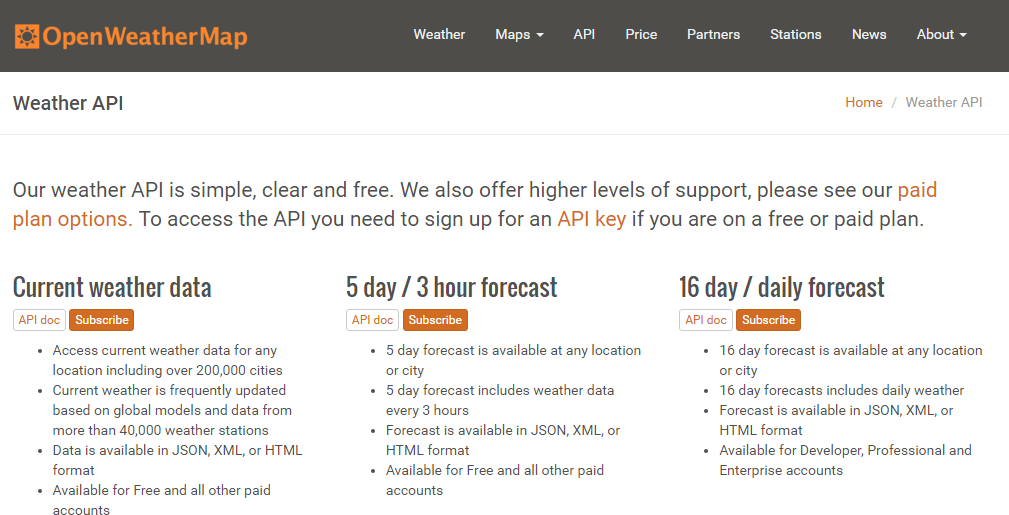
Now we need to get an API key to identify ourselves, this authenticates us to the service.
- Go to http://openweathermap.org/api
- Click Subscribe on the weather setting that interests you
- For our purposes the free package is fine. Click Get API key and Start
- Sign up
- Once completed your API key will be shown.
Step 4:
Create the controller that will call the API.We need a basic Visualforce page the uses the Account standard controller and an extension.Our extension needs to get the Account record from the controller and the shipping city using SOQL.
public with sharing class AccountWeatherController {
public String city {get;set;}
	public AccountWeatherController(ApexPages.StandardController stdController) {
		Account account = (Account)stdController.getRecord();
		account = [SELECT Id, ShippingCity FROM Account WHERE Id =:account.Id];
		String accountCity = account.ShippingCity;
	}
}
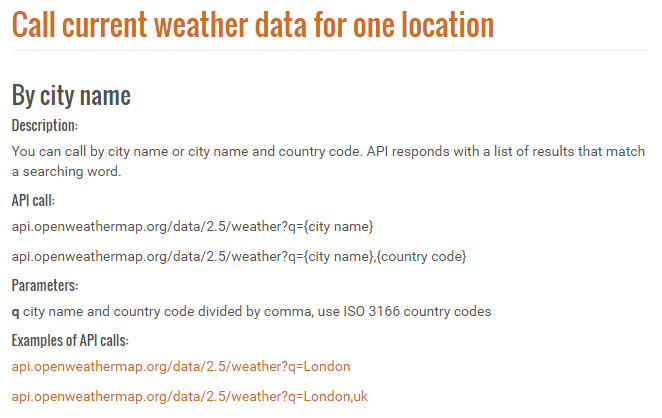
- Now to build the URL based on the API from Open Weather Map.
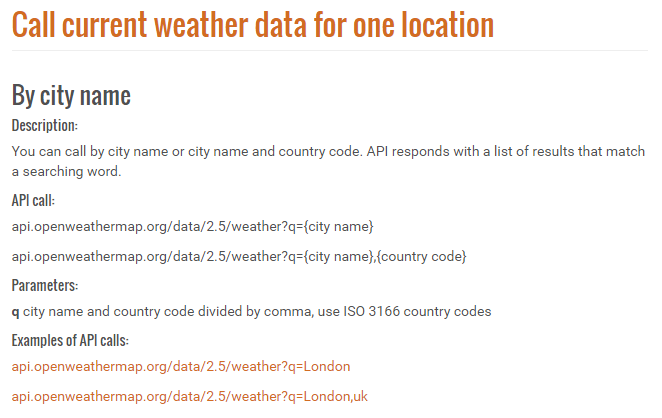
We copy the API key from the previous step and store it as a String to be added to the end of the URL. We also take the Shipping City that was queried from Account and add it to the URL as instructed.
String apiKey = 'XxxxxxxxxxxxxxxxxxxxxxxxxxxxxxxX';

String requestEndpoint = 'http://api.openweathermap.org/data/2.5/weather';
requestEndpoint += '?q=' + accountCity;
requestEndpoint += '&APPID=' + apiKey;
- Creating the HTTP request
We need three variables of type Http, HttpRequest and HttpResponse respectively. The Http class is used to send the HttpRequest and get the HttpResponse.Once the HttpRequest is initialised we then set the endpoint to the URL we built and set the method to ‘GET’.We then create the HttpResponse by calling the send method on the Http using the HttpRequest as argument.
Http http = new Http();
HttpRequest request = new HttpRequest();
request.setEndpoint(requestEndpoint);
request.setMethod('GET');
HttpResponse response = http.send(request);
Step 5:
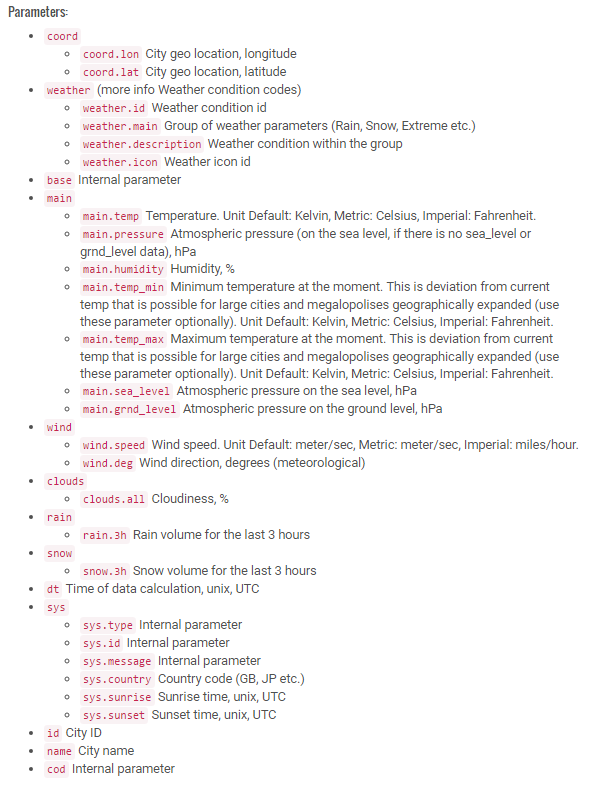
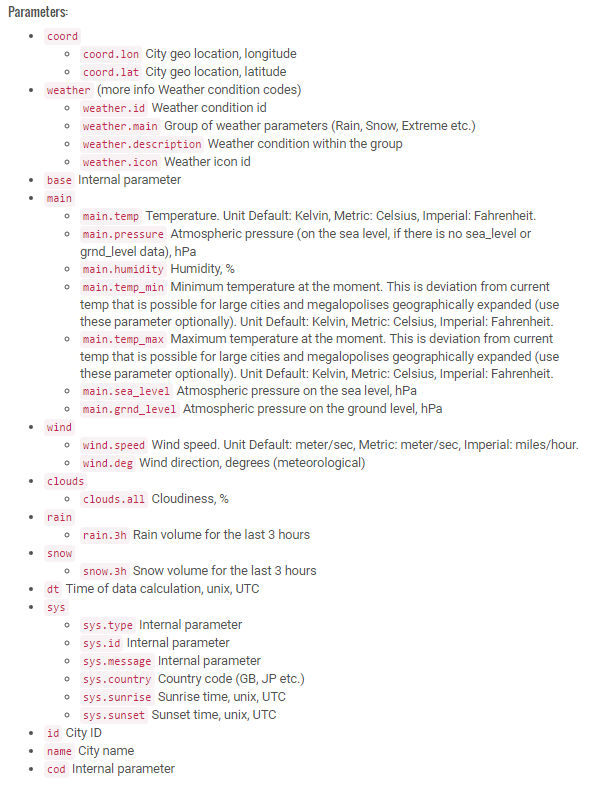
To start we check that the request has been successful by checking the status code is 200, this is the standard response for successful HTTP requests. Then the JSON response needs to be deserialized into a Map of String to Object. The parameters of the API will be accessible as the keys of the MapWe can then get any value we are interested in by accessing the relevant key from the map, assigning the value to a variable in order to display it on our Visualforce page.
if (response.getStatusCode() == 200) {

   Map<String, Object> results = (Map<String, Object>) JSON.deserializeUntyped(response.getBody());
   Map<String, Object> mainResults = (Map<String, Object>)(results.get('main'));
   temp = String.valueOf(mainResults.get('temp'));
   pressure = String.valueOf(mainResults.get('pressure'));
   humidity = String.valueOf(mainResults.get('humidity'));
   temp_min = String.valueOf(mainResults.get('temp_min'));
   temp_max = String.valueOf(mainResults.get('temp_max'));

}
Step 6:
We can either display this using a button that directs to our page or an embedded VisualForce page.
Button:
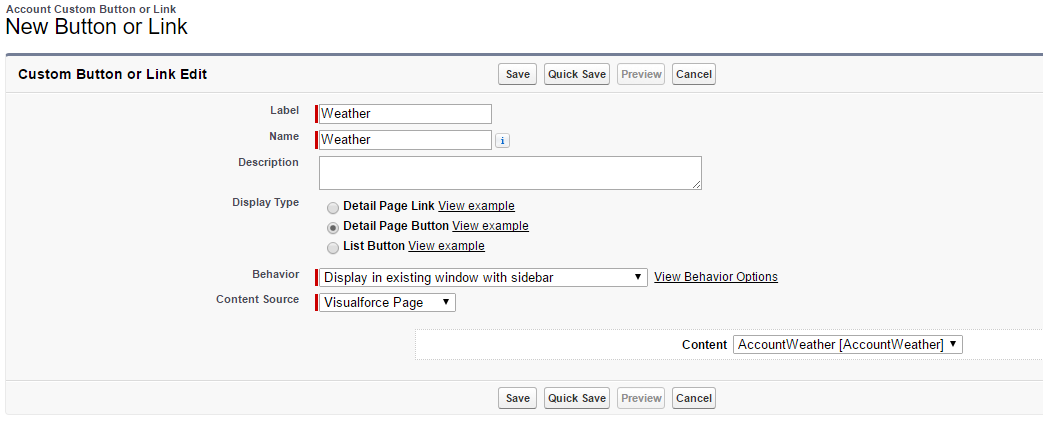
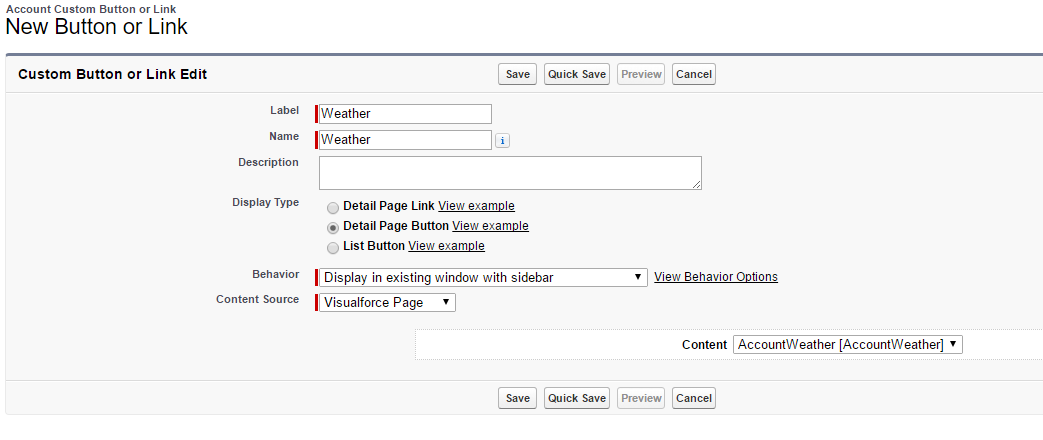
- Navigate to Setup > Customize > Accounts > Buttons, Links, and Actions
- Click ‘New Button or Link’
- Fill in the label field. This can be anything you choose to identify it for yourself. The name field will automatically populate.
- Select ‘Detail Page Button’. This is selecting a button, we could also use ‘Detail Page Link’ if we wanted a hyperlink
- Set Content Source to VisualForce Page.
- Select our page AccountWeather.
- Edit your layout to add the button.
- You may want to have showHeader=”true” sidebar=”true” to show the header and sidebar on the VisualForce page.
Embedded VF Page:
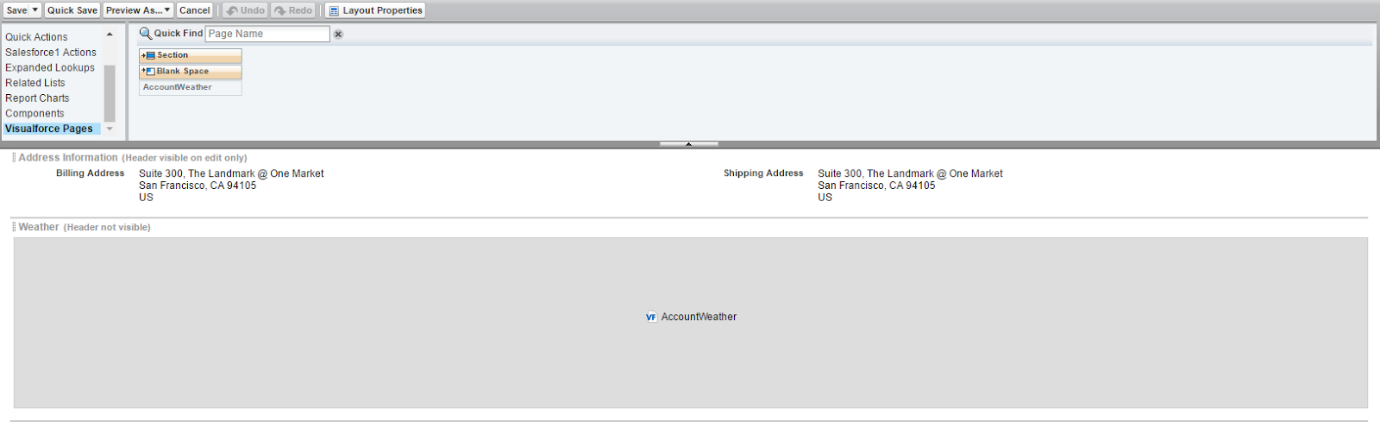
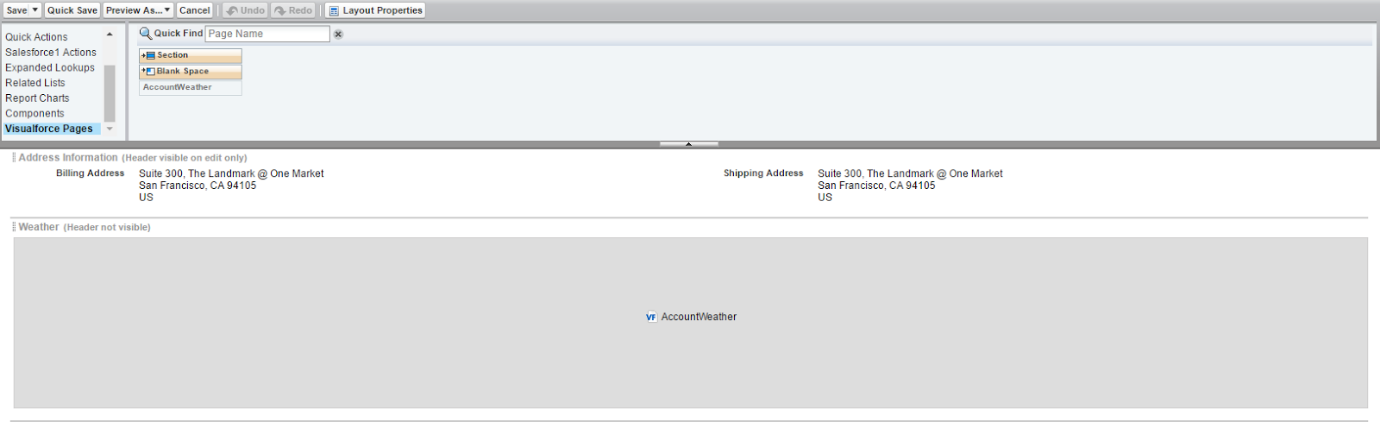
- Navigate to your Account page layout
- Select Visualforce Pages from the menu on the left
- Select the Visualforce page and drag it onto the page where you want it to sit.
- Save
Complete Code:
public with sharing class AccountWeatherController {

        public String city {get;set;}
        public String temp {get;set;}
        public String pressure {get;set;}
        public String humidity {get;set;}
        public String temp_min {get;set;}
        public String temp_max {get;set;}

        public AccountWeatherController(ApexPages.StandardController stdController) {
                Account account = (Account)stdController.getRecord();
                account = [SELECT Id, ShippingCity FROM Account WHERE Id =:account.Id];

                String accountCity = account.ShippingCity;
                String apiKey = 'XxxxxxxxxxxxxxxxxxxxxxxxxxxxxxxX';

                String requestEndpoint = 'http://api.openweathermap.org/data/2.5/weather';
                requestEndpoint += '?q=' + accountCity;
                requestEndpoint += '&units=metric';
                requestEndpoint += '&APPID=' + apiKey;

                Http http = new Http();
                HttpRequest request = new HttpRequest();
                request.setEndpoint(requestEndpoint);
                request.setMethod('GET');
                HttpResponse response = http.send(request);

                // If the request is successful, parse the JSON response.
                if (response.getStatusCode() == 200) {

                   // Deserialize the JSON string into collections of primitive data types.
                   Map results = (Map) JSON.deserializeUntyped(response.getBody());
                   city = String.valueOf(results.get('name'));

                   Map mainResults = (Map)(results.get('main'));
                   temp = String.valueOf(mainResults.get('temp'));
                   pressure = String.valueOf(mainResults.get('pressure'));
                        humidity = String.valueOf(mainResults.get('humidity'));
                        temp_min = String.valueOf(mainResults.get('temp_min'));
                        temp_max = String.valueOf(mainResults.get('temp_max'));

                } else {
                        ApexPages.Message myMsg = new ApexPages.Message(ApexPages.Severity.ERROR,'There was an error retrieving the weather information.');
           ApexPages.addMessage(myMsg);
                }


        }
}
<apex:page standardController="Account" extensions="AccountWeatherController" showHeader="false" sidebar="false">
        <apex:pageBlock title="{!city} Weather">
                <apex:pageBlockSection>

                        <apex:pageMessages/>

                        <apex:outputText label="Temperature" value="{!temp}"/>
                        <apex:outputText label="Pressure" value="{!pressure}"/>
                        <apex:outputText label="Humidity" value="{!humidity}"/>
                        <apex:outputText label="Minimum Temperature" value="{!temp_min}"/>
                        <apex:outputText label="Maximum Temperature" value="{!temp_max}"/>

                </apex:pageBlockSection>
        </apex:pageBlock>
</apex:page>
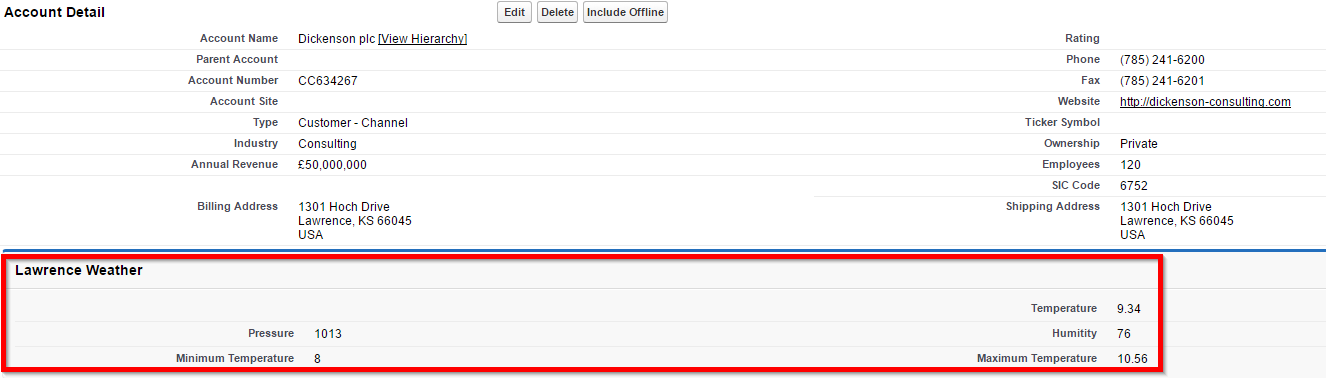
The Result
Here is the result – a the Visualforce page has been embedded in our Account page layout, and will retrieve the weather based on the shipping city of our Account!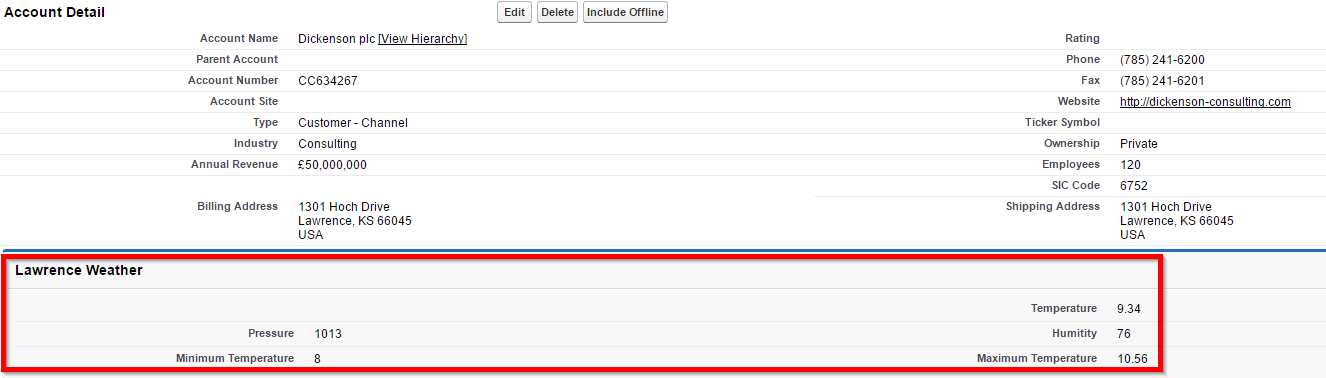
What Certification are you studying for now?
Focus on Force currently provides practice exams and study guides for sixteen certifications
View All Courses 
Martin Gessner is the Founder of Focus on Force.He has spent over 10 years working in various Salesforce roles including business analyst, project manager, consultant and solutions architect. Along the way he has earned twelve certifications, published “The Salesforce Career Playbook”, and helps Salesforce professionals learn more about Salesforce, develop their career and prepare for certifications.