Visual indicators are a great addition to a Salesforce page to highlight important information or values. Instead of just displaying a value, showing an image will make a much larger impact. Depending on the situation, it may be more suitable to just display a single indicator such as a caution or stop image, or if a variable can have a range of values, display a variable image according to which range the value falls into. It is quite simple to display indicators in Salesforce using formula fields. Here are the steps to setup a formula field to display a traffic light indicator.
Here are the steps:
- Find images that can be used for your indicator.
- Load the images into Salesforce documents
- Create a formula field referencing the image URLs
- Add your formula field to the page layout
First you have to find an image to use. If you don’t have your own, you can search on Google images.While you can’t just search and take any image that you find (for copyright reasons), you can search for images that are free to use for commercial purposes. Go to:http://www.google.com/advanced_image_searchand scroll down to usage rights and select “free to use or share, even commercially”

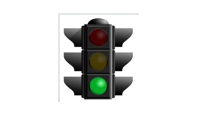
You can then search on your keywords, e.g. Traffic Light and find an image to use. I found this one, for a green traffic light indicator:

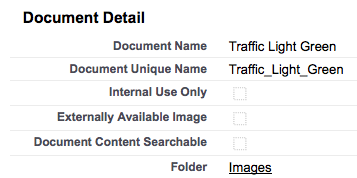
The next step is to upload the image/s to Salesforce. Go to the Document tab, press New to add the image. Give it a meaningful name and save it in the Images folder.
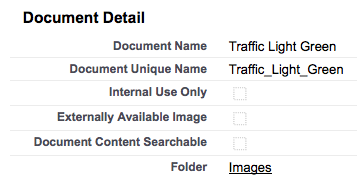
Once you have uploaded your image/s, note the URL’s, as you will need them later in the formula field.
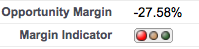
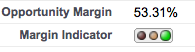
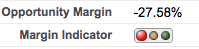
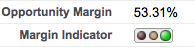
Create a formula field, and use the image URLs that you previously uploaded. In the example below, the formula field will display a green traffic light indicator if the Opportunity Margin is greater than 25%, yellow if it is between 20% and 25% and red if it is below 20%.
IF(Overall_Opportunity_Margin__c > 0.25, IMAGE(“/servlet/servlet.FileDownload?file=015g00000001nok”, “Green”),IF(Overall_Opportunity_Margin__c > 0.2, IMAGE(“/servlet/servlet.FileDownload?file=015g00000001nop”, “Yellow”), IMAGE(“/servlet/servlet.FileDownload?file=015g00000001nou”, “Red”)))
And now in your opportunity, the indicator displays:
* Remember that if you test this in a development environment and move to another environment, the images will need to be uploaded in the new environment, and the image URL’s replaced in the formula fields.
What Certification are you studying for now?
Focus on Force currently provides practice exams and study guides for sixteen certifications
View All Courses 
Martin Gessner is the Founder of Focus on Force.He has spent over 10 years working in various Salesforce roles including business analyst, project manager, consultant and solutions architect. Along the way he has earned twelve certifications, published “The Salesforce Career Playbook”, and helps Salesforce professionals learn more about Salesforce, develop their career and prepare for certifications.