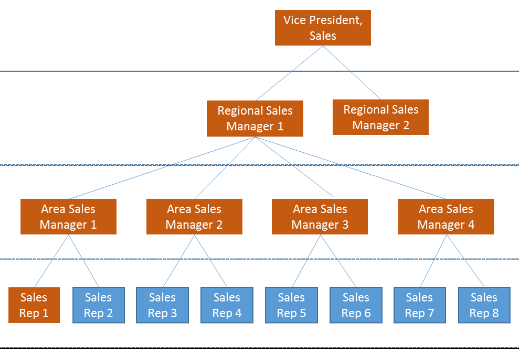
Manager Group sharing is a little tricky to understand until you see example scenarios. Here we go through a couple of examples to explain how it works.
Understanding the Need for Manager Sharing Groups
It is a common practice to group users sharing the same business duties under a single Role. For instance, if your organization has 15 territories within a country – and each territory has an Area Sales Manager; you would most likely use a single role – “Area Sales Manager” – for all of these users; rather than creating 15 separate Roles.
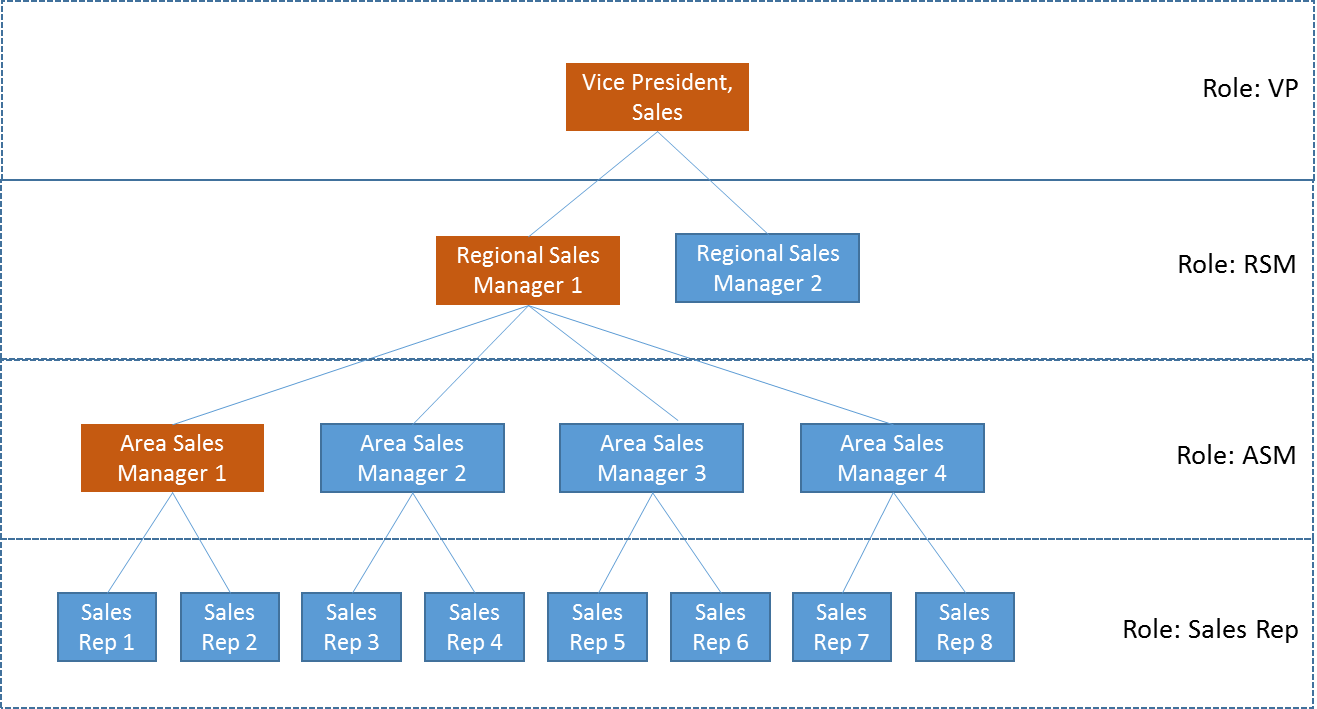
It works well for most use cases, except for those situations in which an employee would only want his direct manager hierarchy to view a record – typical example being a performance appraisal record. Consider the following diagram:
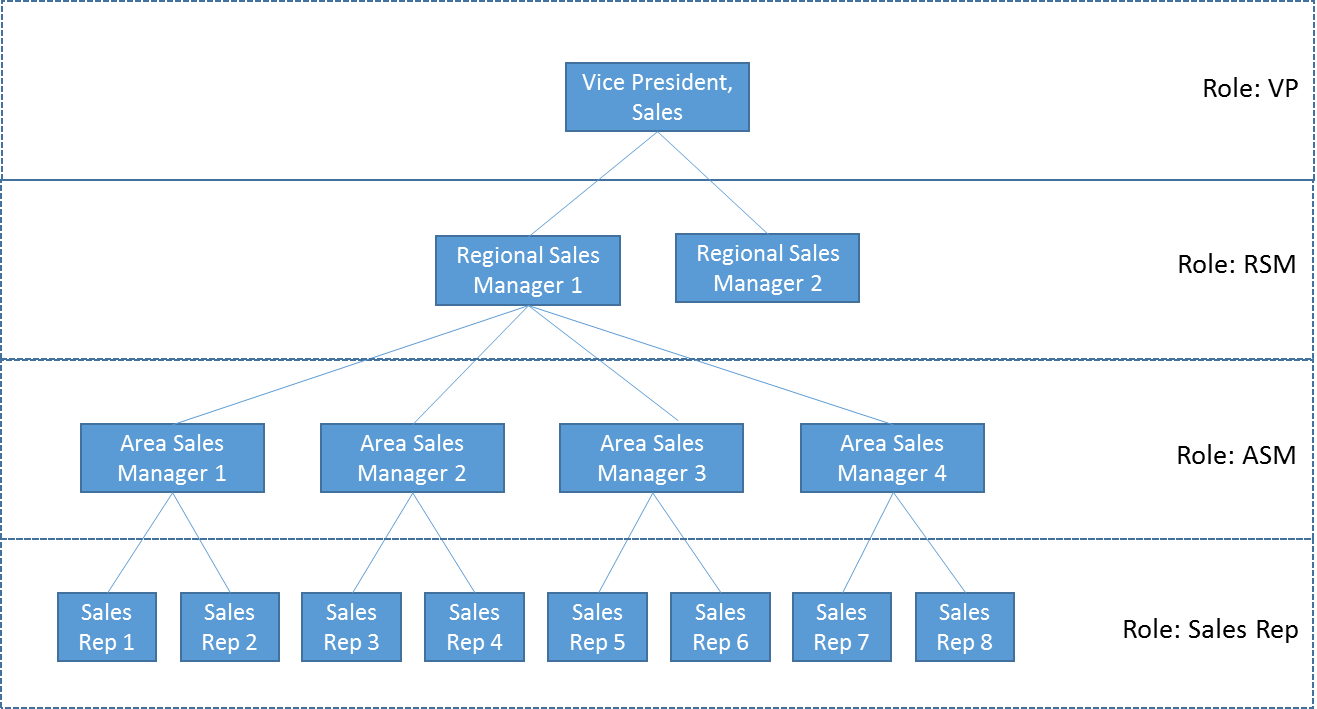
This represents an org, which uses four distinct Roles – VP, RSM, ASM, and Sales Reps, to define the various users in the respective roles.
Now consider that there is an “Expense” object in this Salesforce org, which is used for capturing field expenses. And, the “Grant Access using Hierarchies” option is enabled for Expenses. This would mean that, an Expense record created by “Sales Rep 1″ would be visible to all of the Area Sales Managers, the Regional Sales Managers and VP, Sales.
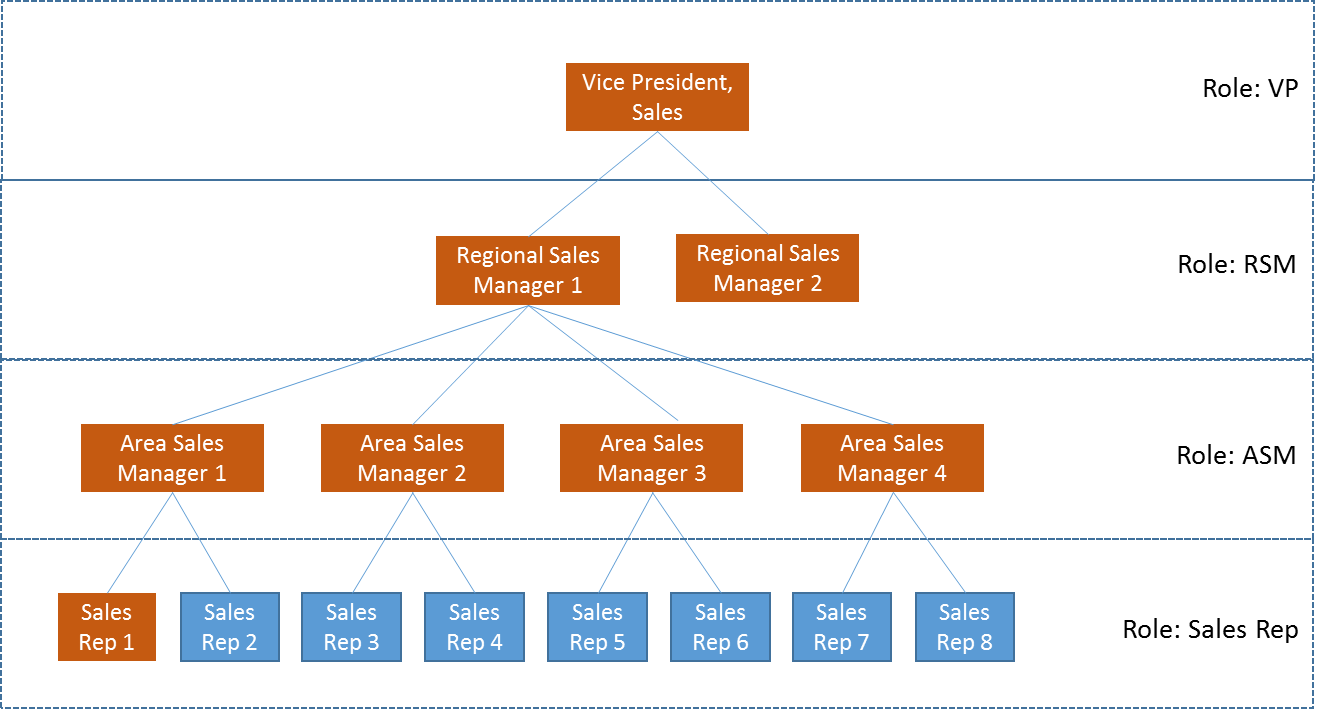
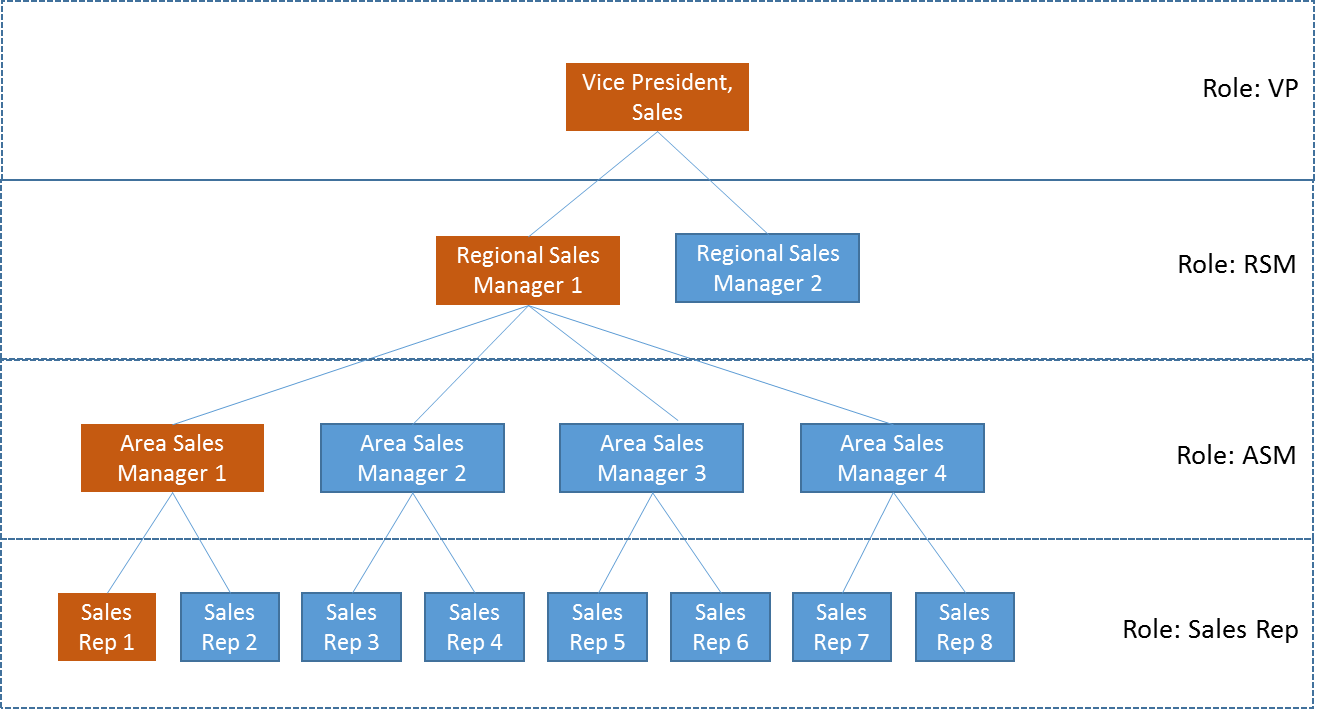
Whereas, ideally, the expense report created by “Sales Rep 1″ should only be visible to “Area Sales Manager 1″, and his/her managers.
One of the common ways to address this would be to split the role hierarchy to match the designation / HR reporting hierarchy. And by doing that, you would be duplicating information already present in your Salesforce org – which is, the user hierarchy formed by the “Manager” field.
As of Spring ’15, Salesforce has introduced Manager Groups feature, which allows administrators to define object sharing rules, as well as users to manually share records using the User Hierarchy that is defined using this manager field.
For the Expense use case mentioned above, this would mean that, “Sales Rep 1″ can choose to specifically share the expense record with “Area Sales Manager 1″ and his/her direct managers. Rather than, with a role and parent roles.
Setting up and using a Manager Sharing Group
In order to fully make use of the Manager Groups, you would first need to have your user hierarchy fully setup in Salesforce using the “Manager” field on user profile.
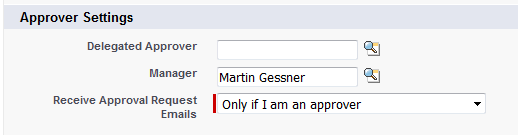
Note that, for users in Group and Professional edition, the manager field would not be displayed on the User edit page layout. This is an expected behavior, as approval functionality is not part of these editions.
For these editions you would need to set the manager field from Chatter > People page, and the instructions are provided here: https://help.salesforce.com/apex/HTViewSolution?id=000212987
Once the user hierarchy is fully set, you can visit the Sharing Settings page to define the Manager Group sharing behavior. In order to see full effect, be sure to turn off the “Grant Access Using Hierarchies” setting for the object in focus.
In the “Other Settings” related information section, you would find the newly provisioned “Manager Group” setting. Enable this, to allow Salesforce to be able to calculate sharing rules based on User hierarchy.
Further, define sharing rules on the objects desired for the Manager Group sharing rule to take effect.
While using Manager Groups, a user is provided with two choices of sharing, as shown in the diagram below:
- Manager’s Group – includes the user’s direct manager hierarchy (does not include the user),
- Manager Subordinates Group – includes the user, and his/her direct subordinate hierarchy.
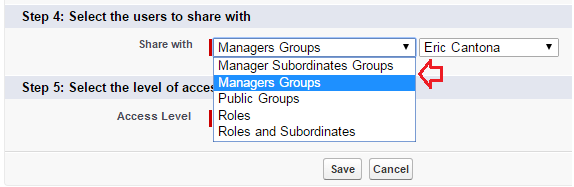
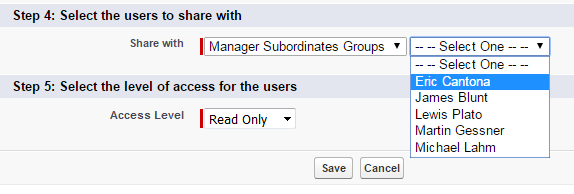
That is, when defining a sharing rule, or doing a manual share – now you would be presented with these two new choices, along with the existing Public Groups, Roles, Roles and Subordinates options. Each active user in the system is automatically listed when you choose any of the manager group options.
This is further explained by the figure combination below. Orange color represents the parties who can would gain access through the Manager Group model.
Case 1 – When a record owned by Sales Rep 1, is shared to “Manager Subordinate Group: Area Sales Manager 1”
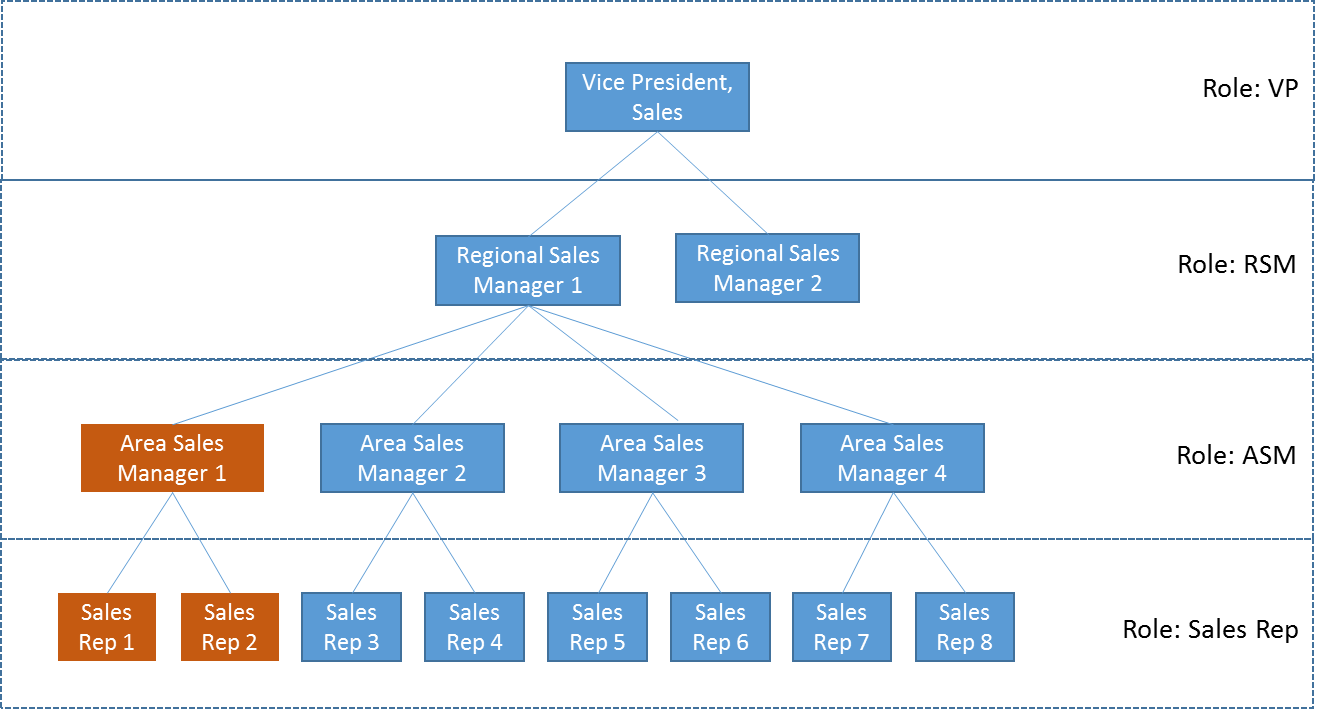
Case 2 – When a record owned by Sales Rep 1, is shared to “Manager Group: Sales Rep 2”
*Notice “Sales Rep 2″ would not have access in this case.
Example of Using Manger Group
Consider two custom objects: Budget and Expense.
- Budget needs to be provisioned by an ASM for his/her Sales Representatives.
- Expense records need to be pushed to manager hierarchy by a Sales Rep.
Budget and Expense objects have been set to Private visibility, with no access percolation using Role Hierarchy.
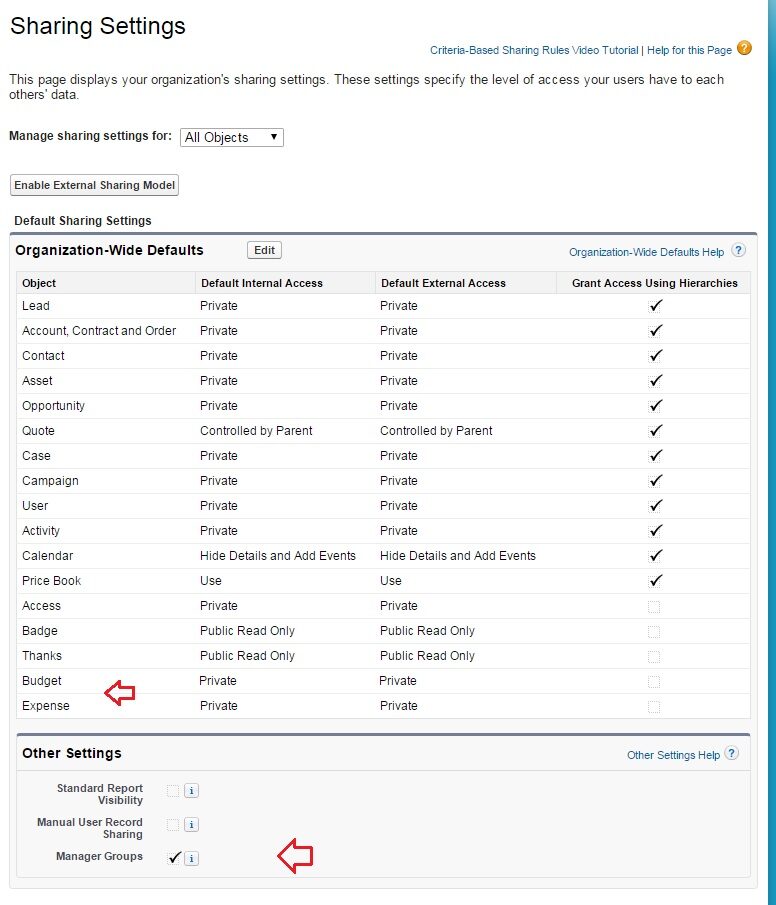
The following image below shows a sharing rule definition on Budget, which ensure all budget records in status = “Published” and owned by Eric Cantona, would become visible to his direct and indirect subordinates.

As for expense records, let us consider using manual sharing rules – which would allow a sales rep user to push an expense record to a manager group.
Manual sharing is invoked by clicking the “Sharing” button available on a record detail page.
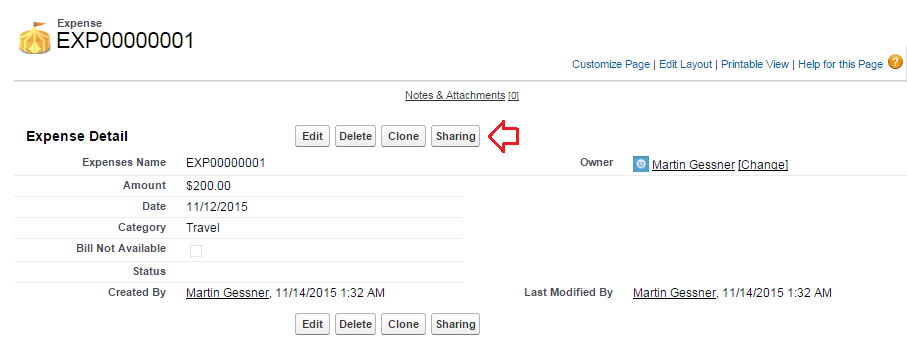
Clicking on the Sharing button would invoke the Manual Sharing definition page, where you would have the option to choose Manager Subordinates Group, or Manager Group.
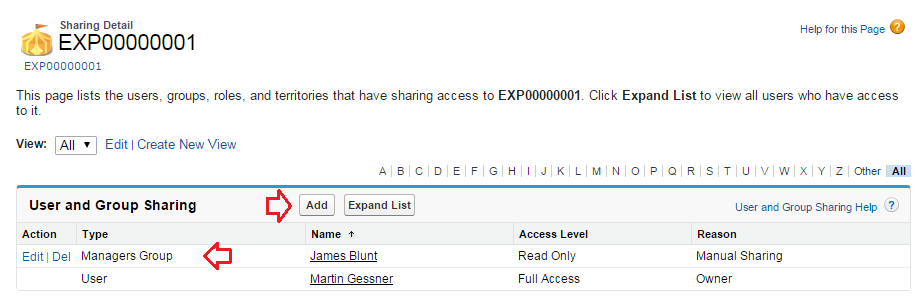
The image above indicates that the EXP00000001 record is now visible to all of James Blunt’s direct and indirect managers – however, not to the entire assignees in the Role Hierarchy.
Summary Note
Manager Groups come as a feature that would save a lot of administrative overhead trying to recreate a role hierarchy to closely match the user reporting hierarchy. It allows a record to be shared with direct and indirect managers of a user, as well as direct and indirect reportees of a user.
However, the feature still needs to mature out from a functional stand point. The biggest draw back as of now, is that there is no automatic sharing definition possible using Manager Groups – like what is present for roles.
At this point, you would need to separately create manager group sharing rules for each user that you are interested in.
That is, as of now Salesforce does not allow you to define a sharing rule that picks up the manager group related to a record dynamically.
For instance, in the above Budget sharing rule example, if the owner of the Budget record changes from “Eric Cantona” to “User B”; the sharing rule would no longer have effect. Unless there is a new Manager Group sharing rule defined with respect to “User B“.
This is raised as an idea here – https://success.salesforce.com/ideaView?id=08730000000Dkq0AAC
Also, it is to be noted that Manager Groups only work for those with a Salesforce or Chatter user license. It does not work for external customers or partner users (community).
What Certification are you studying for now?
Focus on Force currently provides practice exams and study guides for sixteen certifications.
__CONFIG_colors_palette__{“active_palette”:0,”config”:{“colors”:{“394d4”:{“name”:”Main Accent”,”parent”:-1}},”gradients”:[]},”palettes”:[{“name”:”Default Palette”,”value”:{“colors”:{“394d4”:{“val”:”rgb(111, 201, 52)”}},”gradients”:[]},”original”:{“colors”:{“394d4”:{“val”:”rgb(19, 114, 211)”,”hsl”:{“h”:210,”s”:0.83,”l”:0.45,”a”:1}}},”gradients”:[]}}]}__CONFIG_colors_palette__ View All Courses 
Martin Gessner is the Founder of Focus on Force.He has spent over 10 years working in various Salesforce roles including business analyst, project manager, consultant and solutions architect. Along the way he has earned twelve certifications, published “The Salesforce Career Playbook”, and helps Salesforce professionals learn more about Salesforce, develop their career and prepare for certifications.