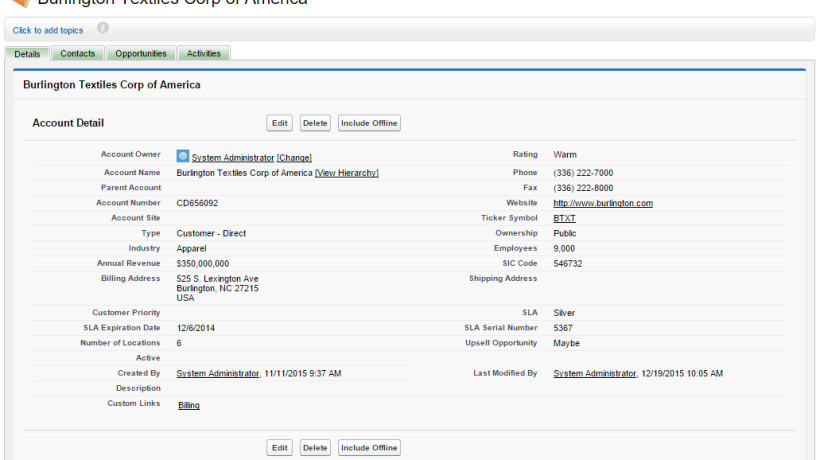
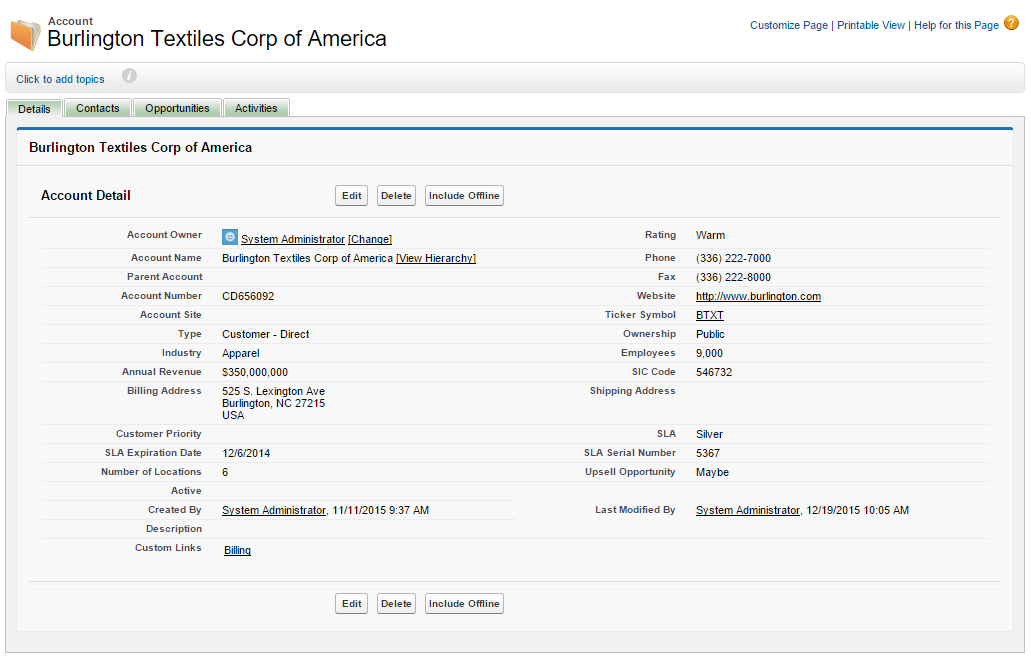
Using Visualforce to build a tabbed user interface
In this example we will override a standard view with a few lines of Visualforce to build a tabbed interface.
Use case: Customize the interface for the Account object using Visualforce tabs. The following tabs should be available:
Detail – Display general information about record. Inline edit feature should be supported;Contacts – Related Contacts list should be displayed in this section;Opportunities – Related Opportunities list should be displayed in this section;Activities – Contain two standard related lists – Open Activities and Activity History.
What features do we need to use?
Visualforce Tabs – to separate details and related lists;Standard Controller – Using the Account standard controller we can override standard actions for the object;
Let’s create a new page. Go to Setup – Develop – Visualforce Pages and hit the New button:
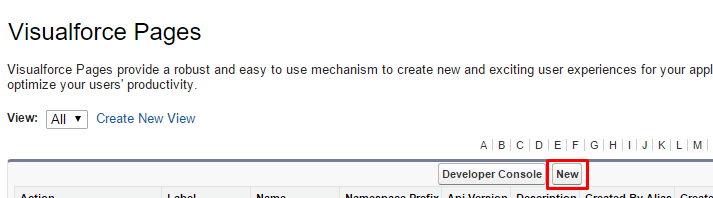
Visualforce page creation
The new Page editor will open:
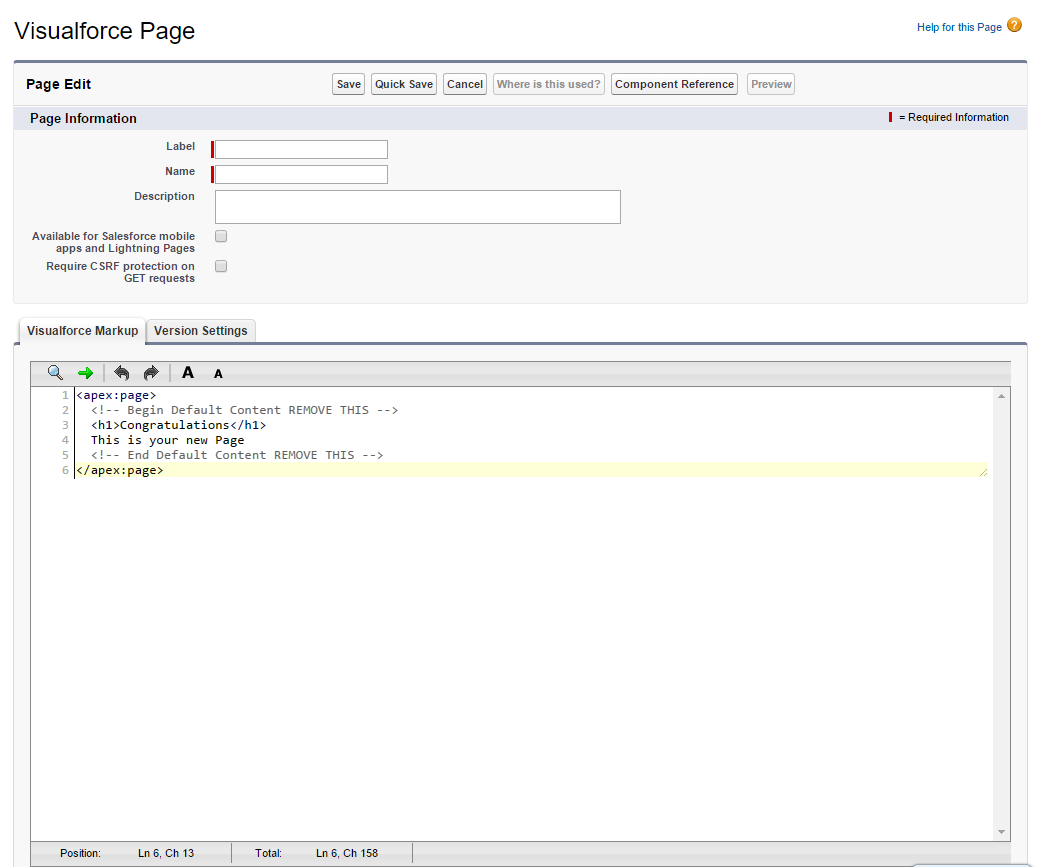
Visualforce page editor.
Let’s name our page as AccountDetails and replace the existing markup with the following:[crayon-6114aef40cc23729086366/]Then click the Save button to save our page. So, it’s a good time to analyze the markup. Let’s see the key points:
<apex:page >
All Visualforce content should be wrapped with this tag. Let’s take a look at it’s attributes:
standardController=”Account” – Determines what object type this page supports. When the page loads the standard controller looks for ‘id’ page parameter and automatically loads the object.
– tabStyle=”Account” Determines that page content has Account object’s look-and-feel.
– title=”{!Account.Name}” Determines the page title. A Formula expression is used to insert the current object’s name for the page title.
<apex:pageMessages />
A block for displaying system messages.
<apex:tabPanel >
A block which contains tabs. Has an attribute:switchType=”client” – determines that content of all tabs will be loaded on page load. So, no server calls will be performed on switching the tabs. Other available options: “server” (default) – page reloads on tab switch; “ajax” – tab content will be loaded on clicking the tab without page reloading. We are using “client” as it works faster.
<apex:tab >
Used inside the tabPanel tag. Determines a separate tab. Attribute:label=”Details” – Determines a label for this tab.
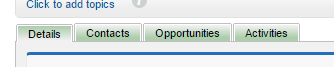
Tab panel with tabs.
<apex:pageBlock >
A block which contains tab content. Attributes:title=”{!Account.Name}” – the same as in the “apex:page” tab.
mode=”inlineEdit” – allows to use inline editing content of the block.
<apex:detail />
Contains details of a record. It takes the standard layout’s content and places it in the detail block. Attributes:
subject=”{!Account}” – Determines object which details should be displayed. The “{!Account}” expression points to standard controller’s record.
relatedList=”false” – Determines that we don’t need to display object’s related list (in the use case we should place all necessary related lists in separate tabs).
inlineEdit=”true” – allows us to modify details without click Edit button.
<apex:relatedList />
This tag used for displaying separate related list we want to place to the tab. Attributes:
subject=”{!Account}” – almost the same as in “apex:detail” tag, determines what object should be used as parent.
list=”Contacts” – links to child relationship. In this case it’s Contacts. Similar ones used for Opportunities and Activities

So, there were key Visualforce features we used to reach our objectives. Now, we need to override standard view with our page. Let’s go to Setup – Customize – Accounts – Buttons, Links, and Actions and click Edit link near the View action:
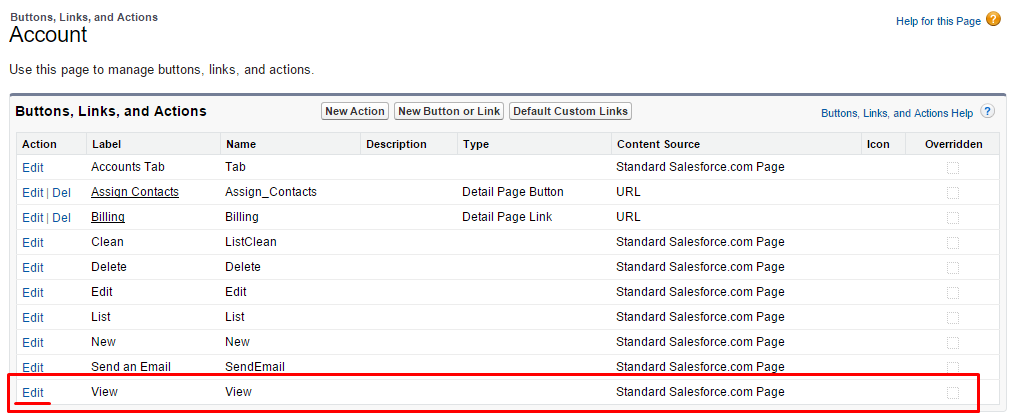
Account’s Butons, Links and Actions.
Choose a Visualforce Page option and select the page you want to be used instead standard layout. Note that only pages used Account Standard Controller can be selected. Then just save changes:
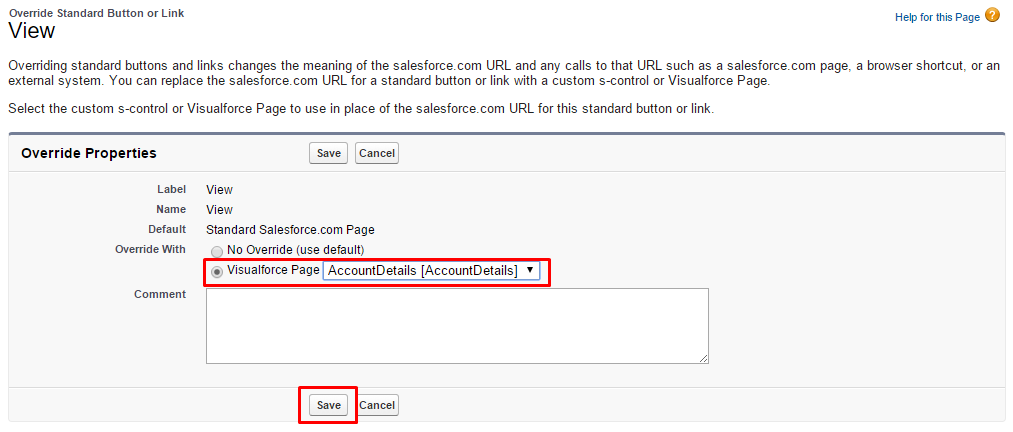
Override settings
Let’s see the new interface. Go to any Account record.
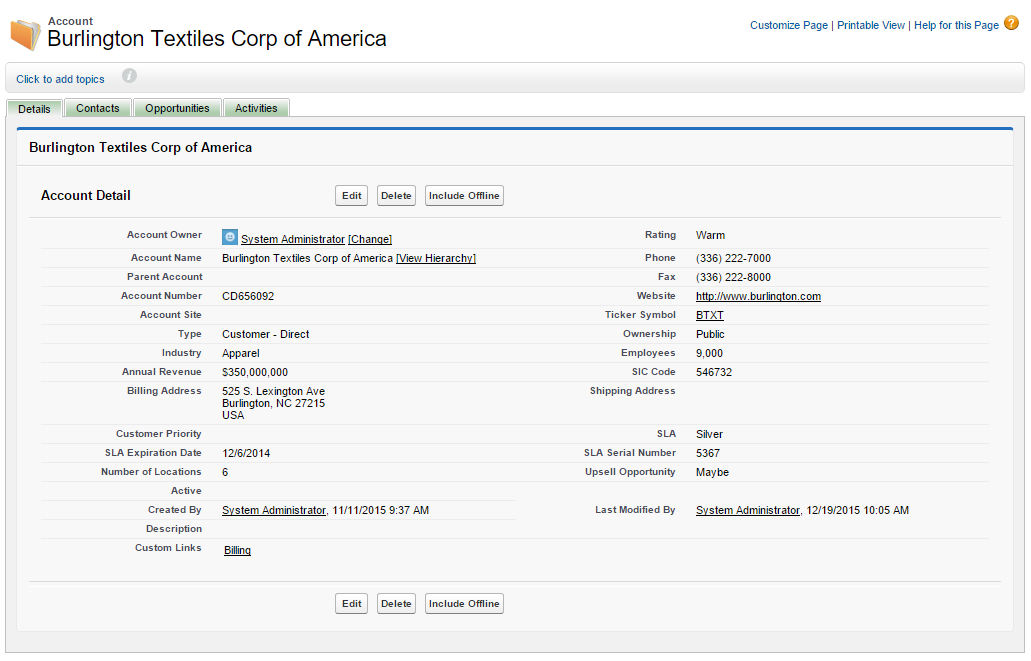
Detail Tab.
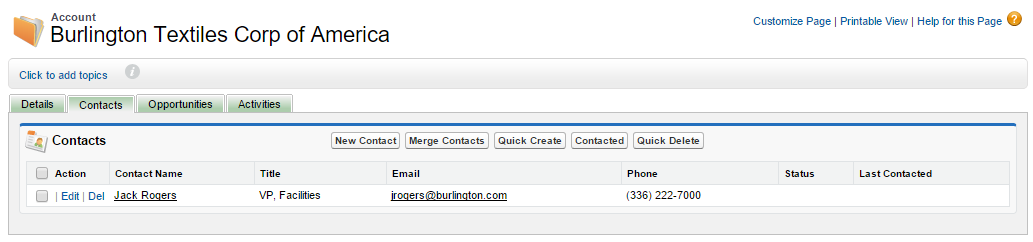
Contacts related list tab.
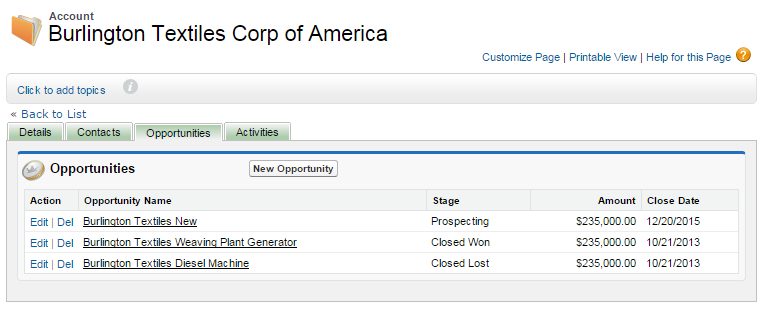
Opportunities related list tab.
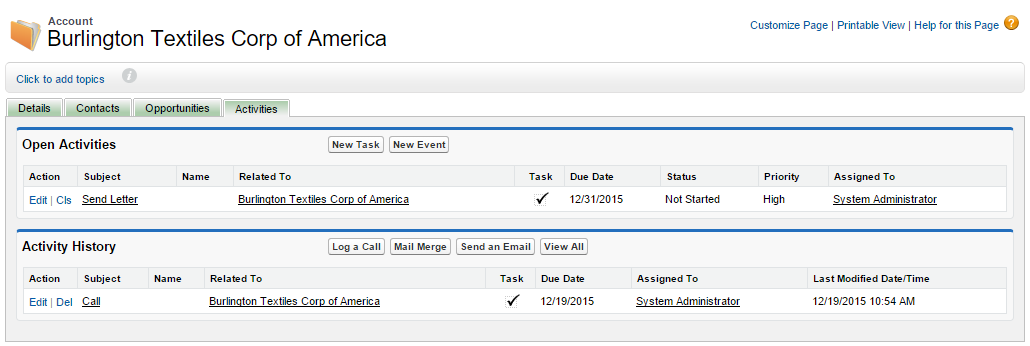
Activities tab
What advantages do we have with this tabbed interface?:
- The user experience is improved. Easier navigation with tabs, no scrolling needed to find needed a related list;
- Fully customized UI has been implemented – differentiation by Opportunity status and supporting related records inline editing;
- We used only the standard controller’s features, we also can use controller extensions to implement any custom functionality
What Certification are you studying for now?
Focus on Force currently provides practice exams and study guides for sixteen certifications
View All Courses 
Martin Gessner is the Founder of Focus on Force.He has spent over 10 years working in various Salesforce roles including business analyst, project manager, consultant and solutions architect. Along the way he has earned twelve certifications, published “The Salesforce Career Playbook”, and helps Salesforce professionals learn more about Salesforce, develop their career and prepare for certifications.